Ignition OPC-UA Demo Setup
Here are some notes on getting Ignition to communicate with the WeighTech OPC-UA demo server.
Go to your Ignition web page / Config / OPC Client / OPC Connections. Click on "Create new OPC Connection..."
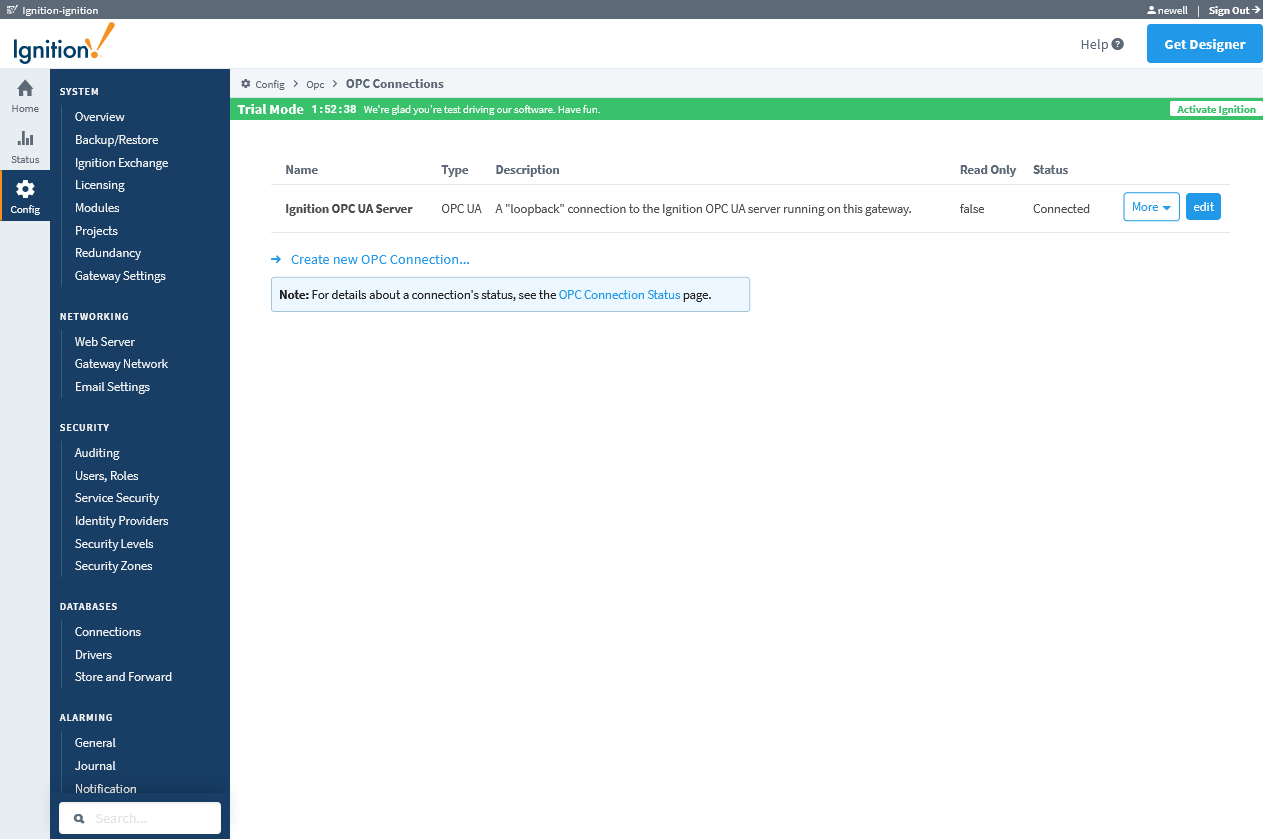
Select OPC-UA (no other choices) and hit next.
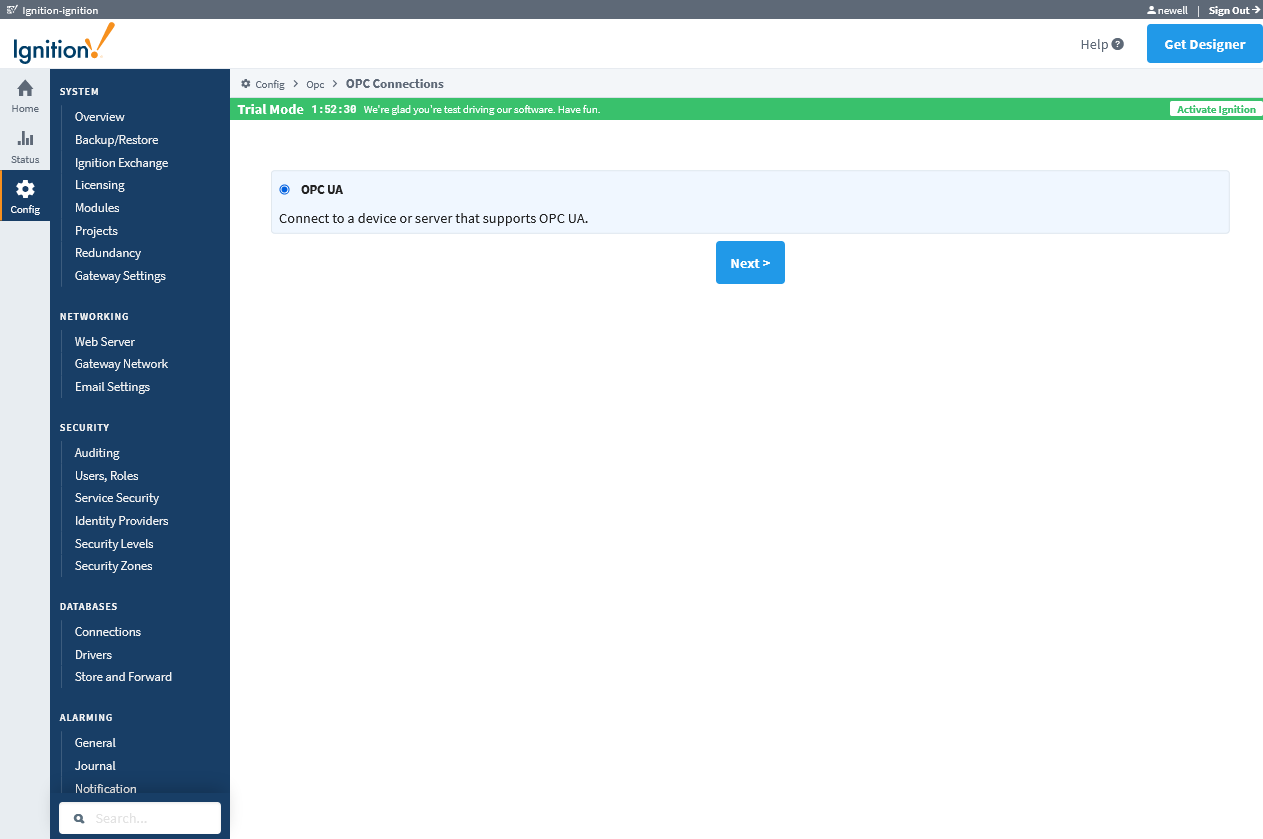
Since the demo hardware is on a dynamic IP address from DHCP, you'll need to enter the endpoint IP, such as "192.168.0.165" and hit next.
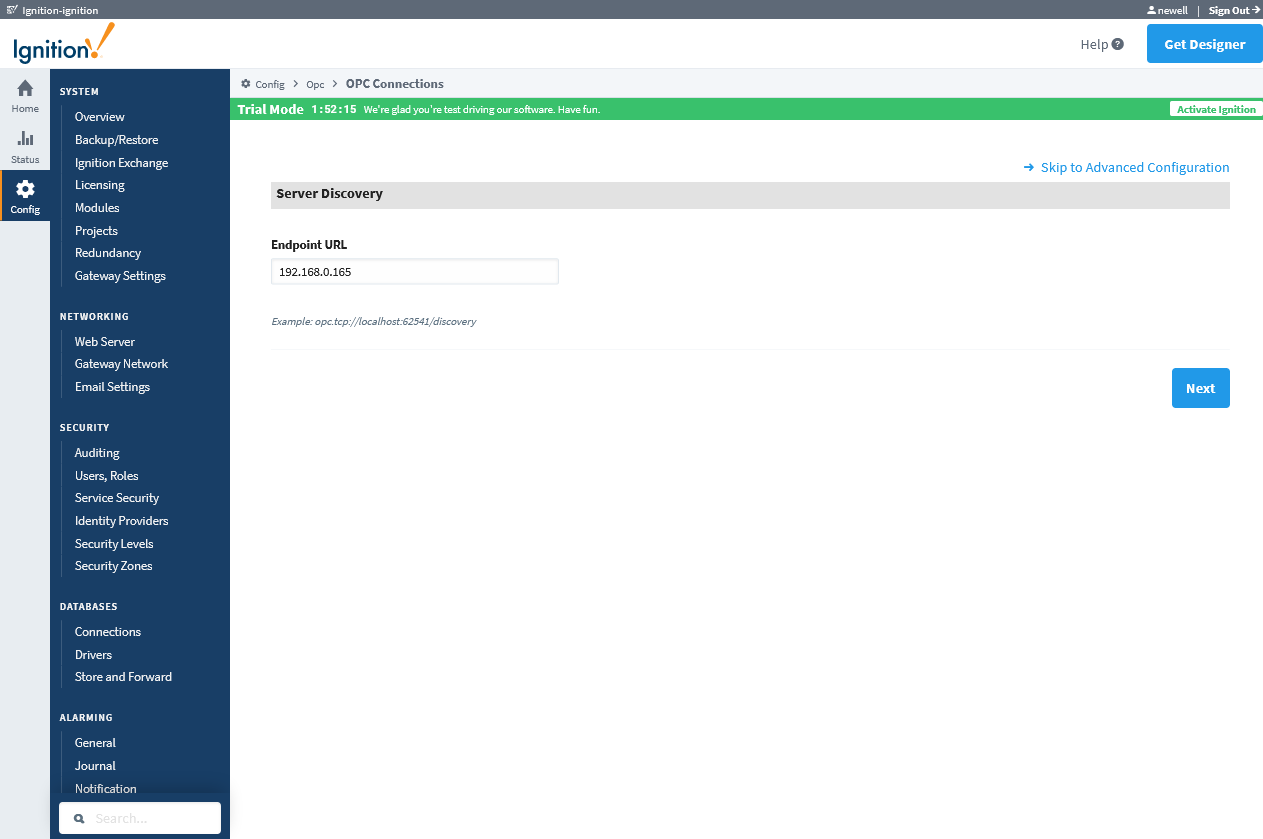
Choose a server: The only option should be the "WeighTech OPC-UA Server Demo" at opc.tcp://0.0.0.0:4840/, so hit next again.
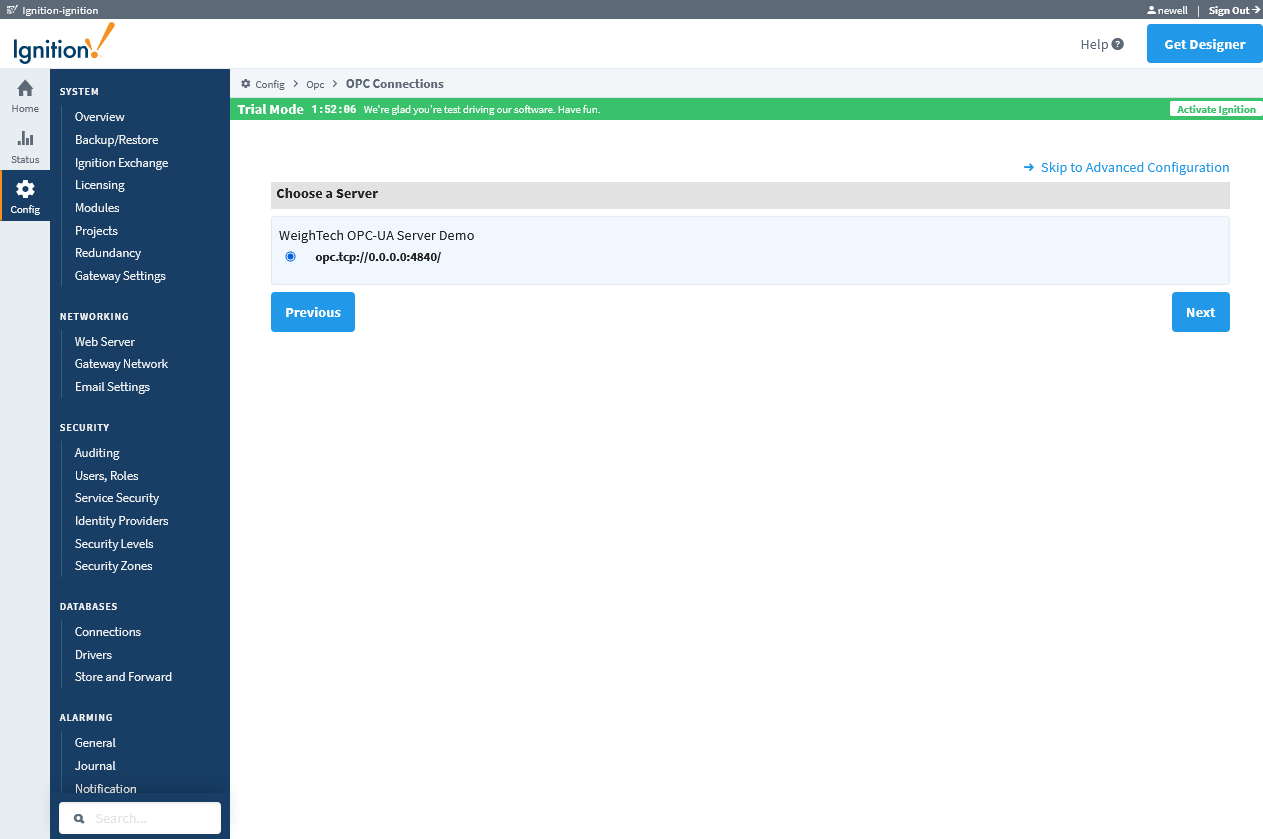
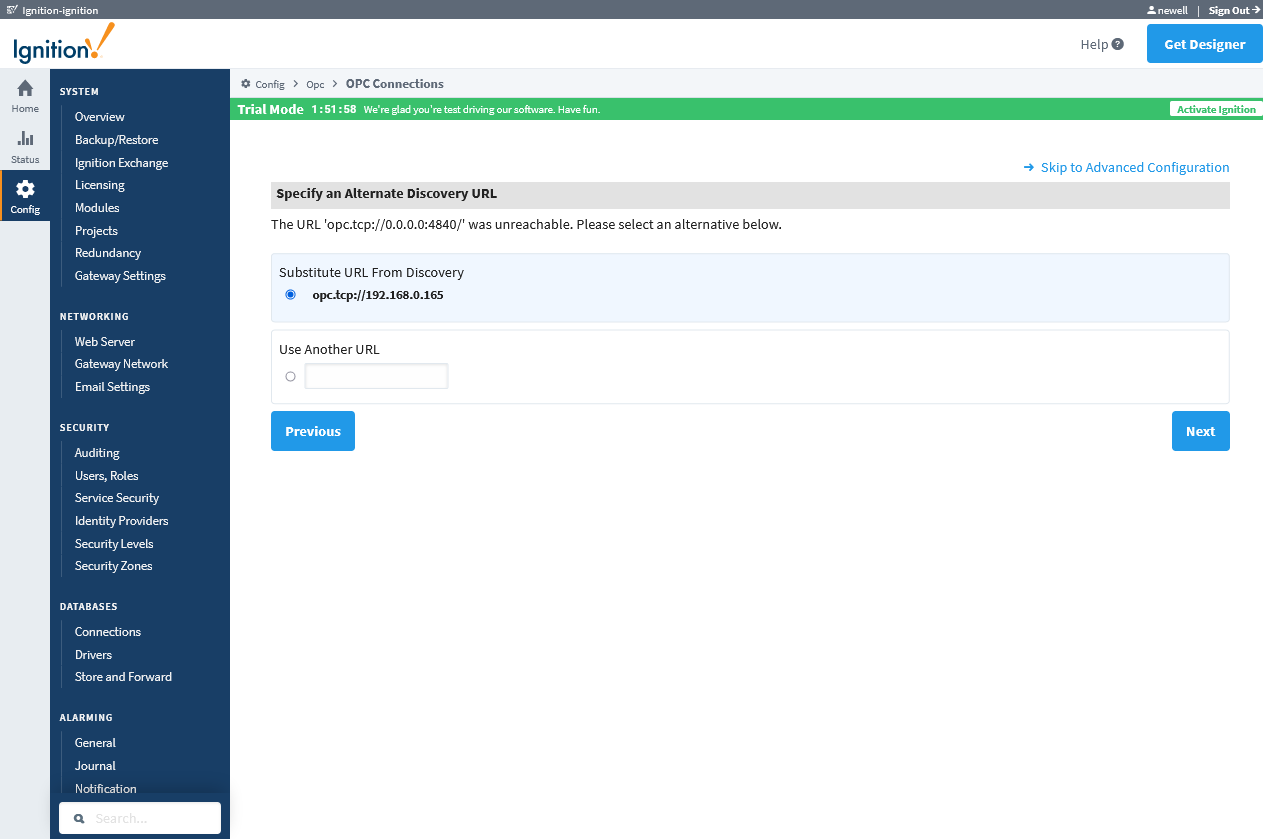
Correct the endpoint: since the OPC-UA server starts before the IP address is available, it's listening on 0.0.0.0. This confuses Ignition a bit, so you'll need to accept the default "Substitute URL from Discovery" option and click next.
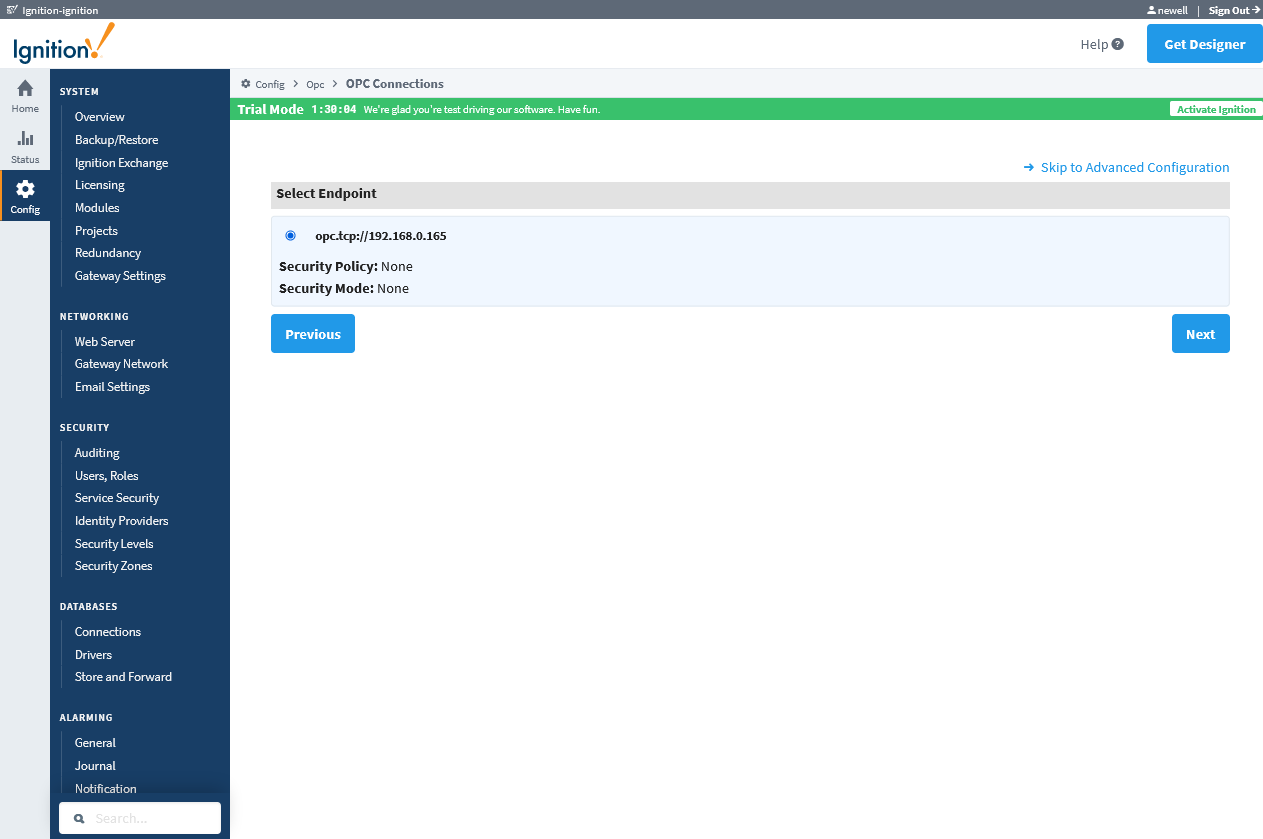
Select endpoint: again, nothing to pick here, just hit next to accept the defaults.
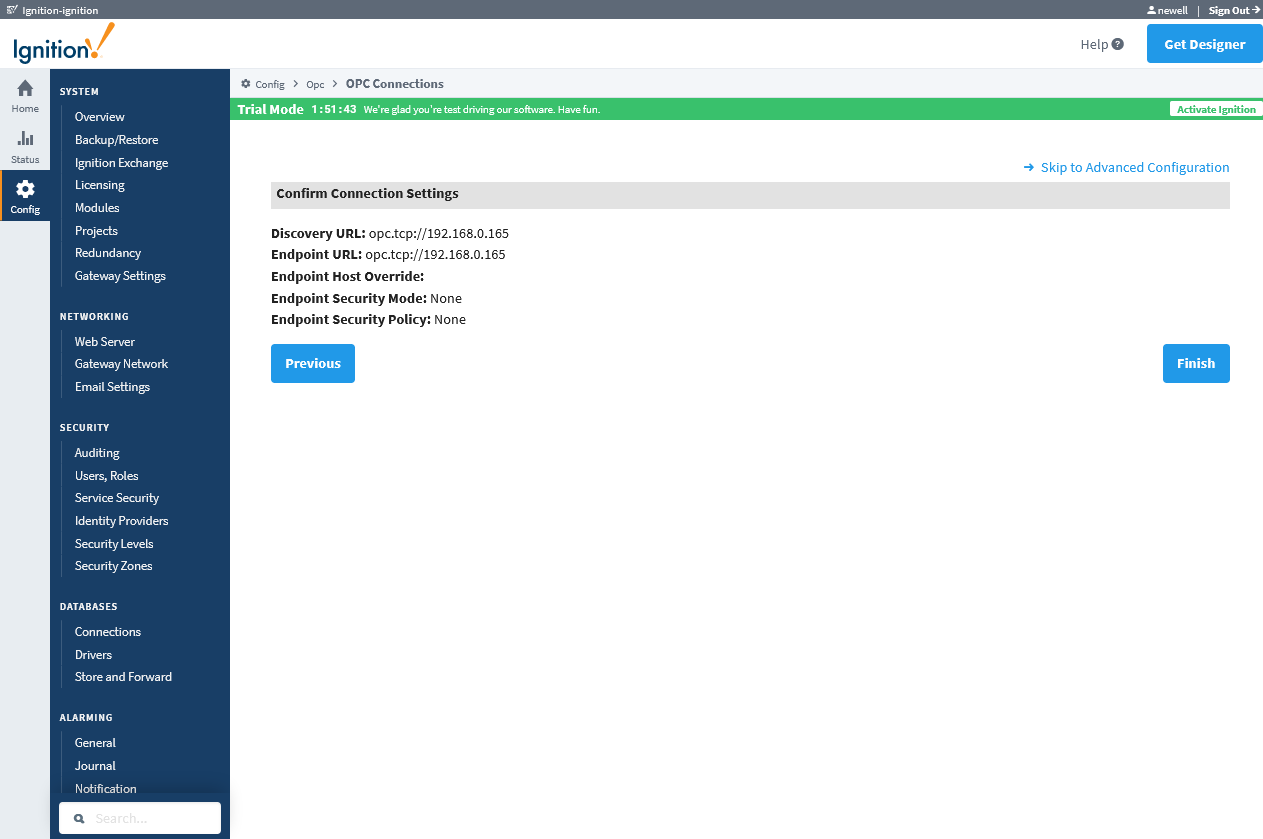
Compare your screen to this OPC-UA config screenshot and if they match, hit finish.
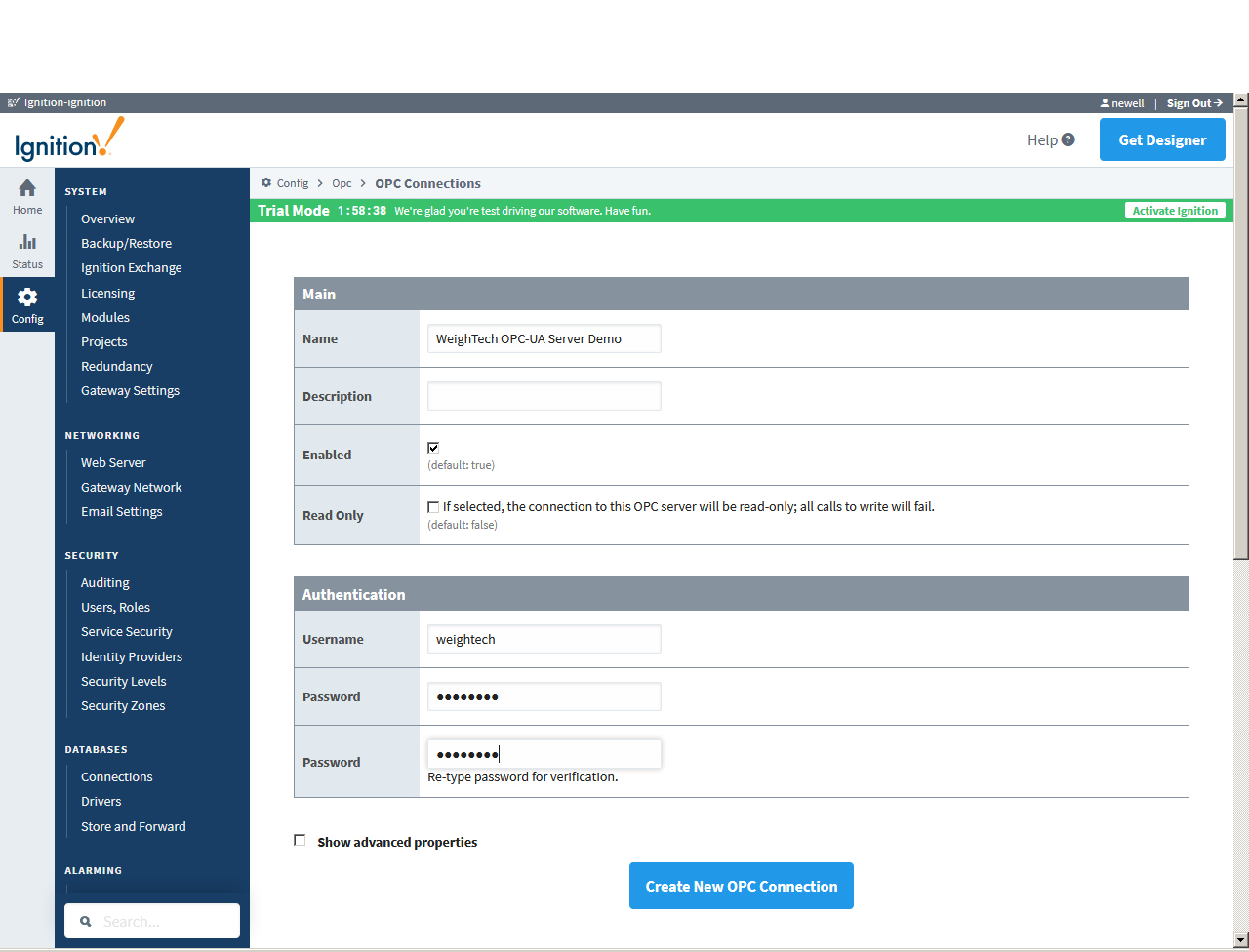
The next page will let you rename the server if you want (I don't think it matters for the demo).
Be sure enabled is checked (it is by default), type in the username ("weightech"), and the password ("password") twice. Then click "Create New OPC Connection".
Ignition will then try and connect. You might notice the "Status" column change from "Connecting" to "Connected".

Once it's connected, let's browse the demo server!
Start up Ignition Designer and create a new project. Open the Tag Browser and the OPC Browser (View/Panel, check the "Tag Browser" and "OPC Browser" boxes.)
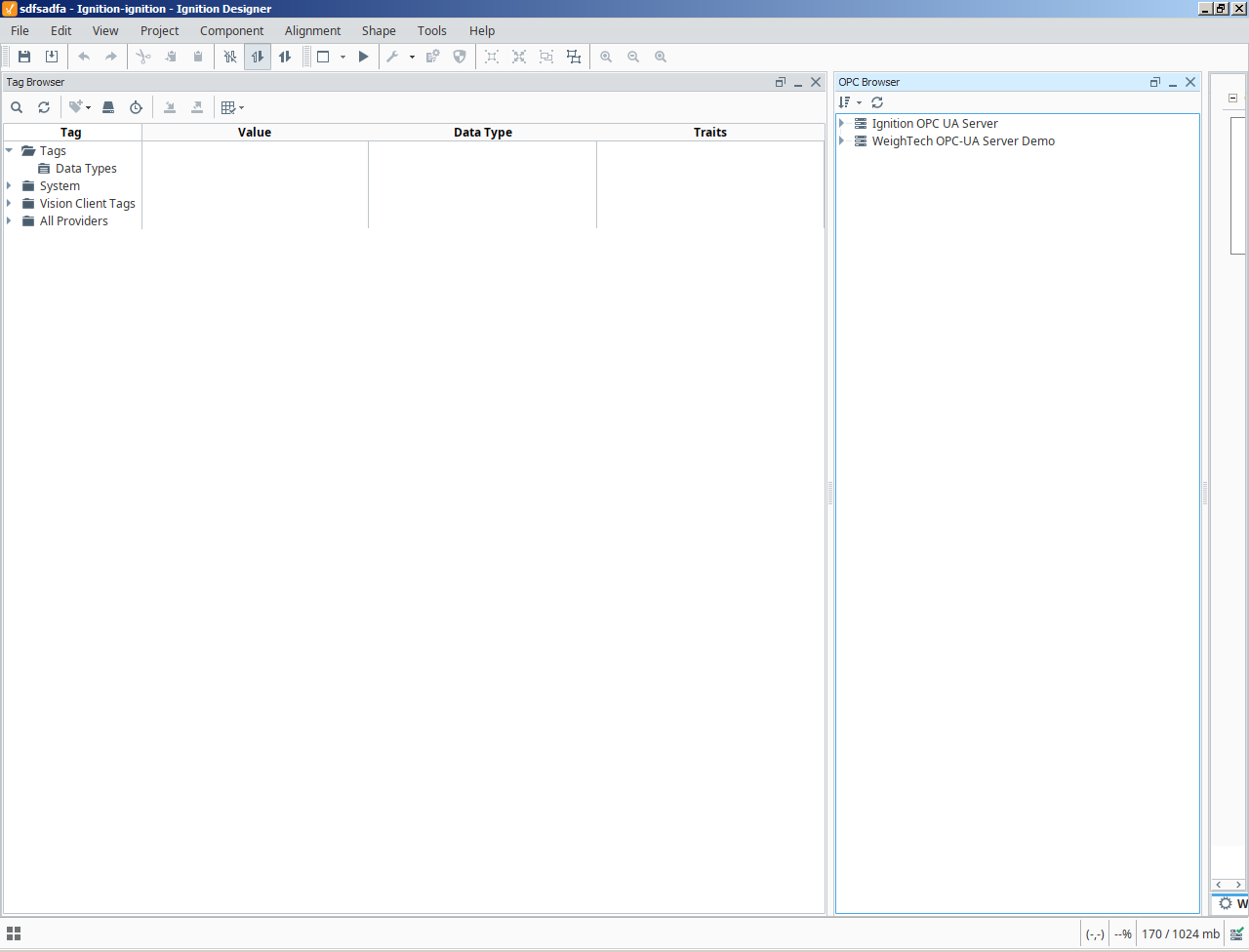
You might want to refresh the OPC Browser list by clicking on the little circle arrow icon at top left.
In the OPC Browser, expand the WeighTech OPC-UA Server Demo. Click on "Tray" and drag it to the "Tags" folder at the left side of the Tag Browser. Do the same for the "Last clear", "Missed trays", and "Rx" nodes.
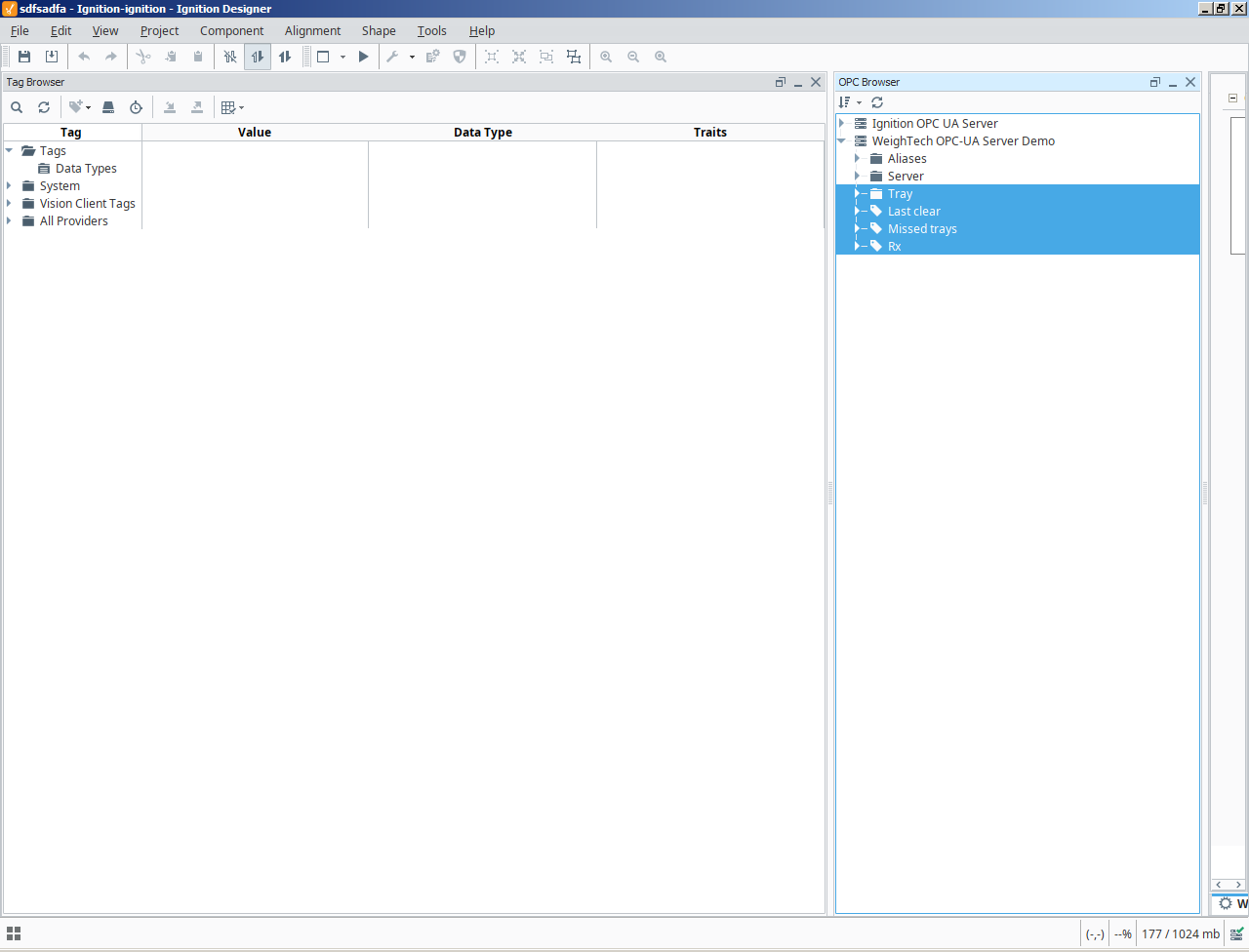
You should now be able to expand the "Tray" tag in the Tag Browser and see the live tray stats.
